
Features
Industries
Who we serve
Resources
Sign in
Get Started - $500/month
No commitment. No implementation fee. Unlimited users
If you're a prime contractor, you sit in the middle of every storm job. You answer to the utility above you, and you work with linemen and subcontractors to restore power. On many storms, part of that job is sending your subcontractor rates out by email or spreadsheet, and that's where mistakes creep in.
KYRO AI solves this with rate cards. You save the rates you pay your subcontractors once, publish them to the subcontractors on a storm project, and those rates flow straight into each subcontractor's invoices.
Below, we walk through what a rate card is, how to set one up before a storm, how to publish rates on a project, and what your subcontractors see on their side.
When rates travel by email or spreadsheet, your subcontractors have to retype the numbers you sent. Each time a rate is typed in by hand, there's a chance it goes wrong. Those mistakes then end up on the invoices. The paperwork matters beyond your own invoices. Contractor costs can be included in a utility's FEMA Public Assistance claim only when the documentation meets FEMA's requirements, and missing documentation is the main reason those costs go unclaimed.
Getting rates right matters, because they are checked closely further up the chain. Large investor-owned utilities review contractor invoices line by line against contract terms and rate schedules before they approve payment. Hours logged to the wrong labor classification (regular, overtime or double time) are a common reason invoices get rejected, and a rejected invoice doesn't just hold up one line item. It holds up the entire submission.
Rate cards take the retyping out of the process. You save the rates once and send them through KYRO AI, and your subcontractors invoice from the same numbers.
A rate card is a saved set of the labor and equipment rates you pay your subcontractors. It has two parts:
Rate cards are global. That means you set them up once, before any storm, and reuse them on every project. You'll find them under Rate Cards in the main menu.
Here's how to add one:
Once a rate card is saved, you can manage it in three ways:
Inside your storm project, go to Compensation Schedule, open Sub Pay Rates, and click Pick from Rate Cards. From there, publishing takes three steps. Nothing reaches your subcontractors until you publish.
Once the rates are published, your subcontractors receive an email and an in-app notification. You can see where things stand in the Sub Pay Rates list, which shows each subcontractor as Published (with the date and time), Not published yet, or No rates. If anything changes, you can update the rates and publish again at any time.
Once you publish, those rates become your subcontractors' billing rates for that project. Here's what that means for them:
From there, the invoice moves the way invoices do in KYRO AI. It follows a two-step approval path from subcontractor to prime to utility, and each tier reviews and approves it before it moves to the next level.
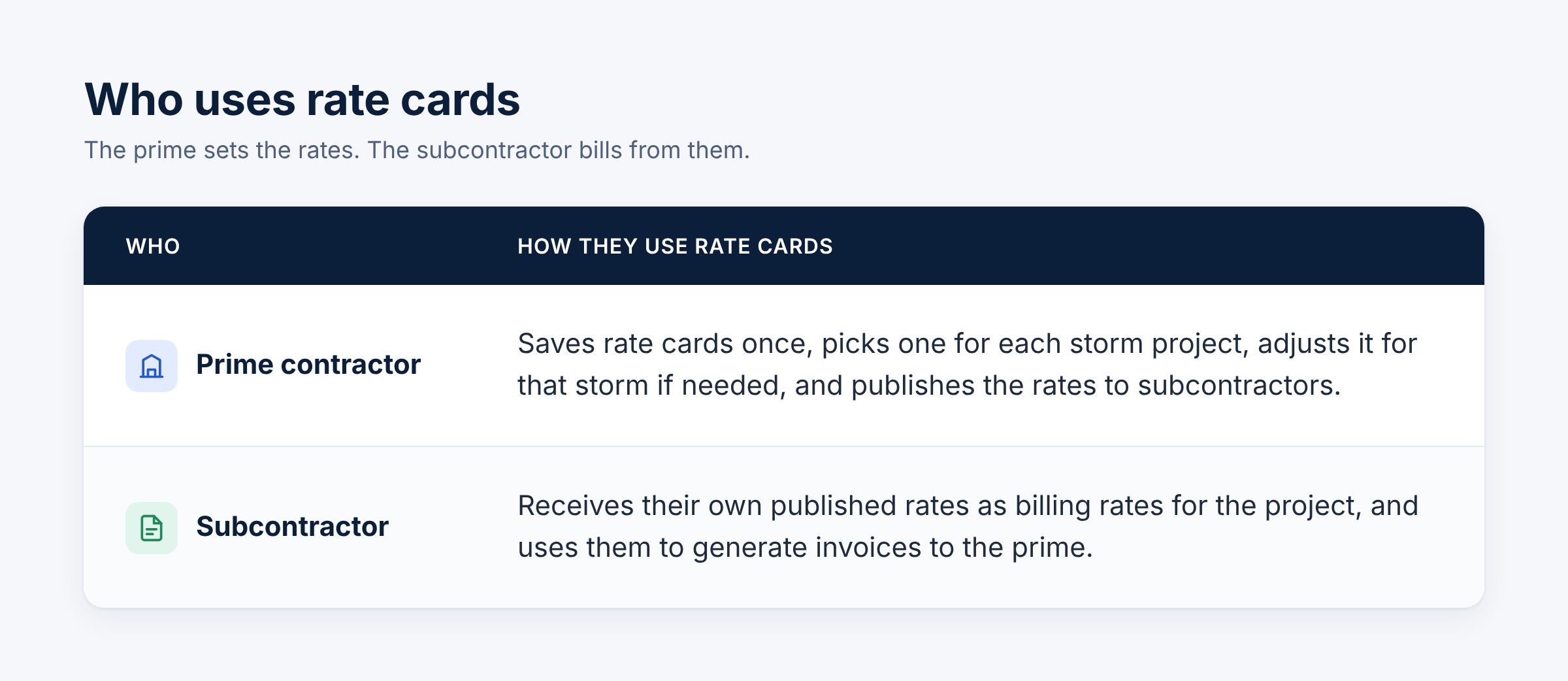
Rate cards bring two groups together: the prime contractor who sets the rates, and the subcontractors who bill from them.
Rate cards give you one place to keep the rates you pay your subcontractors. You set them up once, adjust them for a storm when you need to, and publish them when you're ready. Your subcontractors get their rates in KYRO AI, ready to use, and build their invoices from the same numbers you set.
Want to see how rate cards work? Register for a webinar with the KYRO AI team.
What's included in a rate card?
Every rate card has labor rates and equipment rates. Labor rates are set for each classification, covering straight time, overtime and double time. Equipment rates are set per hour for each equipment type, along with its fuel type.
Do I need a new rate card for every storm?
No. Rate cards are global, so you set them up once and reuse them on every project.
Where do I find rate cards in KYRO AI?
You'll find them under Rate Cards in the main menu. To publish rates on a storm project, go to Compensation Schedule, open Sub Pay Rates, and click Pick from Rate Cards.
What file do I upload to create a rate card?
Upload the filled-in Excel template as an XLS or XLSX file. The template has two sheets: Labor and Equipment.
If I change a rate for one storm, does my saved rate card change too?
No. Any changes you make while publishing apply to that storm only. Your saved rate card stays the same.
Can my subcontractors see each other's rates?
No. Each subcontractor sees only their own rates.
Do my subcontractors get the rates before I publish?
No. Nothing reaches a subcontractor until you publish. You can publish right away or choose Publish later.
What if I need to change rates after publishing?
You can update the rates and publish them again at any time. Your subcontractors get a notification and work from the latest rates.
What happens if a rate is missing or set to $0?
Missing rates are flagged, so you can fix them before you save the rate card. If a rate is set to $0, you'll see a warning before you publish.
Can I remove a rate card I no longer use?
Yes. You can archive it to take it out of your active list, or delete it. KYRO AI asks you to confirm before a rate card is deleted.
As a subcontractor, where do I find my billing rates?
Go to Compensation Schedule and open Customer Billing Rates. The rates your prime published for you on that project are listed there.
Who can publish and see rates?
Only billing admins and org admins. On the prime's side, they're the only roles that can publish rates, and on the subcontractor's side, they're the only roles that can see them.